
Planning guidance
Guide to viewing
The Citizen Portal planning system allows members of the public to search for and view planning applications in the New Forest National Park.
If you know the address or case number, you can use the quick search feature. You can also quickly view applications that were received in the last week, or determined in the last week. Otherwise you can use the advanced search to locate a specific application or applications.
If you create an account and sign in, you can also comment on applications and register to be notified when a planning application of interest is updated.
Using the Citizen Portal
You can find our Citizen Portal here Citizen Portal Planning (agileapplications.co.uk). The Portal should work for all browsers but it seems to work best when using Microsoft Edge. We are aware too that some users experience difficulties accessing historic documents online when using certain devices. We are trying to resolve these issues with our supplier.
Searching for a planning application – quick search
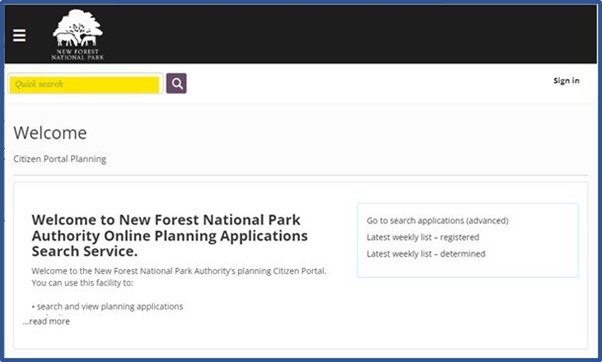
If you know a full or partial case number or address you can enter it in the Quick Search box at the top of the page, then click the Search icon to see a list of matching cases.
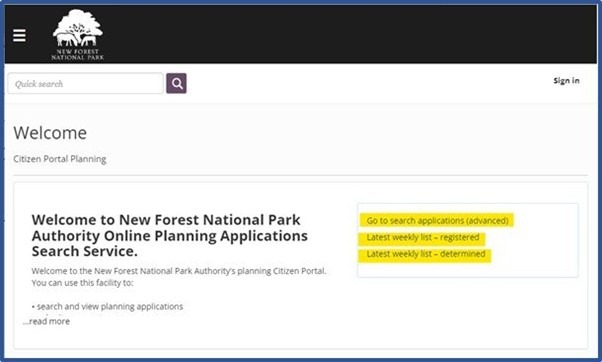
You can also:
- click Go to search applications (Advanced) to use the general search facilities, including the advanced search (see Searching for a planning application – general search)
- click Latest weekly list – registered to see a list of planning applications registered in the last week
- click Latest weekly list – determined to see a list of planning applications determined in the last week.
Searching for a planning application – general search
On the Citizen Portal home page Citizen Portal Planning (agileapplications.co.uk) click Go to search applications (advanced) on the right hand side of the screen.
Here, you can enter a full or partial application reference if you know it, or a full or partial address to see a list of matching planning applications. Then click on an individual application to see the application details.
More advanced search options on the general search page:
- By default, Standard is selected, so you will search all matching applications. You can also select Determined or Registered to choose to see only matching applications that have been determined (select the Determined radio button on the next screen), or only matching applications that have been registered (select the Registered radio button on the next screen). In these cases, you can specify a date range to limit the search too.
- If you want more control over the search, on the general search page, select the Advanced search check box. Here you can filter by various dates, application status, parish, development type etc.
Searching for a planning application – latest registered search
To quickly see a list of all the planning applications registered in the last week, on the Citizen Portal home page Citizen Portal Planning (agileapplications.co.uk) click Latest weekly list – registered on the right hand side of the screen.
Searching for a planning application – latest determined search
To quickly see a list of all the planning applications determined in the last week, on the Citizen Portal home page Citizen Portal Planning (agileapplications.co.uk) click Latest weekly list – determined on the right hand side of the screen.
Searching by date range
On the Citizen Portal home page Citizen Portal Planning (agileapplications.co.uk) click Go to search applications (advanced) on the right hand side of the screen.
On the general search page, select the Advanced search check box. Now you can specify a date range for any or all of:
- Application date
- Decision date
- Validation date
- Decision due date
You can use the date filters together with other filters if you want (for example, parish, application status).
Searching by parish
On the Citizen Portal home page Citizen Portal Planning (agileapplications.co.uk) click Go to search applications (advanced) on the right hand side of the screen.
On the general search page, select the Advanced search check box. Scroll down the page and you’ll see the option to select the parish from the drop-down list of parishes.
You can use the parish filter together with other filters if you want (for example, dates, application status).
Viewing a planning application
- Summary – a summary of the application details. This includes the application status, the named planning officer and the decision if applicable.
- Consultations – a list of the consultees, interested parties and neighbours that have been notified about the application.
- Responses – a list of the responses (comments, objections, support) that have been received for this application. Click on a response to see the response. Depending on the response, you may see the response text directly, or you may see a link to a response document which you can download to view.
- Constraints/policies
- Documents – the planning application, plans, reports etc
- Conditions
- Dates
When viewing applications registered before 1 October 2022 you may not see anything in the consultations and responses’ sections. For these applications the comments can be found under the ‘Documents’ section.
When viewing documents it is best to use the ‘eye’ icon on the left hand side of the screen. Alternatively if you do want to download/save a copy of a document, then click on either the name or description of the document.